README
Installing Nokia Siemens Networks Flexi EDGE BTS Manager Version 3 MP2.0 Build 0017
Table of Contents
1. Introduction
This document
provides information about installing Nokia Siemens Networks Flexi EDGE BTS
Manager. This is not a document or guide to Nokia Siemens Networks Flexi EDGE
BTS Manager itself.
This BTS
Manager is used for managing the Nokia Siemens Networks Flexi EDGE BTS
equipment. It is used for various activities like commissioning the BTS,
monitoring events, taking measurements, getting various reports from BTS,
configuring data at BTS, and viewing alarms at BTS. More details on these and
other activities can be found in user documentation
and also in BTS Manager online help.
2. Minimum System requirements
Minimum System Requirements for
Installing Nokia Siemens Networks Flexi EDGE BTS Manager
- Windows XP Professional
- PC/Laptop with 300 megahertz or higher processor
clock speed recommended
- Intel Pentium/Celeron family, or AMD
K6/Athlon/Duron family, or compatible processor recommended
- 128 megabytes (MB) of RAM or higher recommended
- Super VGA (1024 x 768) or higher-resolution video
adapter and monitor
- Keyboard and Microsoft Mouse or compatible
pointing device.
- Windows 2000 Professional Edition
- PC/Laptop with 300 megahertz or higher processor
clock speed recommended
- Intel Pentium/Celeron family, or AMD
K6/Athlon/Duron family, or compatible processor recommended
- 128 megabytes (MB) of RAM or higher recommended
- Super VGA (1024 x 768) or higher-resolution video
adapter and monitor
- Keyboard and Microsoft Mouse or compatible
pointing device.
- Windows 2000 Server Edition
- 550 MHz for x86-based computers
- 256 MB of RAM- Super VGA (1024 x 768) or
higher-resolution video adapter and monitor.
- Keyboard and Microsoft Mouse or compatible
pointing device.
- Windows Server 2003
- 550 MHz for x86-based computers
- 256 MB of RAM- Super VGA (1024 x 768) or
higher-resolution video adapter and monitor.
- Keyboard and Microsoft Mouse or compatible
pointing device.
- Windows Vista Business 32-bit edition
- 1 GHz for 32-bit x86-based computers
- 1 GB of RAM - Super VGA (1024 x 768) or
higher-resolution video adapter and monitor.
- Keyboard and Microsoft
Mouse or compatible pointing device.
- Minimum
of 100 MB minimum free disk space for installation with a minimum of 200MB free
disk space if the BTS Manager will be used to connect to a BTS.
- Nokia Siemens
Networks GCS is required for connection with BTS. Flexi EDGE BTS manager
supports GCS R4.2 and above on all above Windows machines except Windows Vista.
On Windows Vista, Flexi EDGE BTS Manager supports GCSR6.0 and above. Preferred
one is GCS R6, which is shipped along with BTS Manager.
3. Installation of BTS Manager
Installing Flexi EDGE BTS Manager
To install
Flexi EDGE BTS Manager, follow these steps:
Step 1: Launch
Setup.exe
Launch
Setup.exe available in EM installable to start installation.
Step 2: Accept License Agreement
A Nokia Siemens Networks proprietary License
Agreement displays the software license and terms of use of the Flexi EDGE BTS
Manager. Please read the agreement carefully before installing the product. You
must accept the license agreement in order to install the product on your PC or
Laptop. You can also choose to print the agreement if you have a printer
connected to your computer.
Step 3: Provide Installation Location
The
default install location of BTS Manager is the location of the 'Program Files'
folder on the machine. The BTS Manager installation creates Nokia Siemens
Networks folder under 'Program Files', if not already present. The user can
change installation directory according to his choice. If the directory does
not already exist then the new directory will be created.
Step 3:
Minimum System Requirement Check
After the location of installation has been
specified, the installation wizard performs system check on the computer to
determine if it meets the minimum system requirements as specified in System
Requirements. The system requirement check will inform you about
the installation status of the GCS software on your computer. If you want the
installation process to install or upgrade GCS on your computer to 5.0, you
must tick the box provided for the same. The Sun Java Runtime Environment, ©
Copyright Sun Microsystems Inc, is shipped along with this BTS Manager and does
not requires any separate JRE installation.
Step 4: Ready to install
A page will be displayed informing whether required
resources available. The user can verify all the options chosen so far. If you
wish to change some options, navigate to the particular screen using the Back
button.
Step 5:
Copying of BTS Manager Files
Files are copied at the user-specified location under the folder Nokia Siemens Networks\Flexi EDGE BTS Manager\Version 3 MP2.0 Build 0017 \.
e.g. When installing BTS Manager Version 3 MP2.0 Build 0017 at user
specified path D:\Program Files the files are copied to this location: D:\Program
Files\Nokia Siemens Networks\Flexi EDGE BTS Manager\ Version 3 MP2.0 Build 0017\.
Windows XP
This section is relevant if there is a
Microsoft ICF (Internet Connection Firewall) © Microsoft configured on the
Host PC/Laptop.
To manually open a port in Internet Connection
Firewall (ICF) in Windows XP, follow these steps:
|
|
1. Click Start, and then click My Network
Places. This will open up a Windows Explorer view with a list of known
network places for your PC. The contents of this view will vary from PC to PC
but on the left hand side there should be a list of tasks. If these are not
visible make sure that the "Folders" button in the toolbar is not
selected. |
|
|
2. Under Network Tasks, click View
Network Connections. This will change the view to show the network
connections that are available on your PC. The number and type of connections
available will vary from PC to PC. It is necessary to identify the connection
that will be used to connect to the Flexi EDGE BTS. The specific name of this
connection will vary from PC to PC but the connection name will not contain
"wireless" or "bluetooth". If you are unsure which
connection will be used please consult your System Administrator or IT
Helpdesk. |
|
|
3. Right-click the connection that will be used to
connect to the Flexi EDGE BTS, and then click Properties. This will
display the properties page for the connection. |
|
|
4. Scroll down the list of items and choose Internet
Protocol (TCP/IP) and then select the Properties button. This will
display the Internet Protocol (TCP/IP) Properties page within which the IP
address settings can be changed. |
|
|
5. Ensure that the "Use the following IP
address" radio button is selected. Enter the IP Address, Subnet mask and
Default gateway according to the instructions given in the Flexi EDGE BTS
Manager connection instructions. |
|
|
6. Select OK on the Internet Protocol (TCP/IP)
Properties page. Then OK again on the connection Properties Page to effect
the changes to the IP address settings. |
For additional information, click the following
article numbers to view the articles in the Microsoft Knowledge Base: 283673
How to enable or disable the Personal Firewall
feature in Windows XP: 307554
How to enable or disable the Personal Firewall
feature in Windows Vista and Windows 2008: 942957
How to enable or disable the Personal Firewall
feature in Windows 2003: 555381
Programs require manual port configurations with
Internet Connection Firewall
Zone Alarm
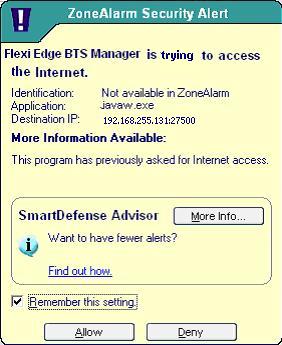
If Zone Alarm Proxy is installed on the client
machine, following pop up shall appear when Flexi EDGE BTS Manager tries to
connect to Flexi EDGE BTS.
Select the option “Remember this setting” and
click on ‘Allow’ button to proceed.
Launches the GCS installation process. Only
applicable if this option was selected.
On successful completion of installation shortcuts
will be created on your desktop and in the Start menu to launch the Flexi EDGE
BTS Manager.
Warning
1. On
certain computers, you may also be required to restart your computer before
running the application.
2. Using
the change location dialog repeatedly and specifying a new location every time
would also create as many new folders in your drive. The installation process
will not delete all these interim folders.
Maintenance mode is executed when the installation
application detects that the same version of Flexi EDGE BTS Manager is already
installed in the system. You can
use this setup either to re-install or uninstall the product. Re-installing is
handled in this section, the uninstalling is handled in next section.
Re-installing Flexi EDGE BTS Manager
To re-install Flexi EDGE BTS Manager, follow these
steps:
Step 1: Launch Setup.exe
Launch
Setup.exe available in EM installable to start re-installation.
Step 2: Maintenance mode
selection
Choose Re-install option and click Next on
Wizard page. A confirmation will appear confirming overwriting of currently
installed version.
Step 3: Minimum System Requirement Check
The Minimum requirements are same as for fresh installation.
Step 4: Re-install the BTS Manager
Application files are copied to the same
location where the product was installed previously.
Click Finish to complete re-installation. On
successful completion of re-installation, shortcuts will be created on your
desktop and also in the Start menu to launch the Flexi EDGE BTS Manager.
Note: - Presently Flexi EDGE BTS Manager Installation application
upgrades GCS version in maintenance mode only when the setup is run from the
CD-ROM disk, not from the Start menu shortcut.
Warning :
1.On certain computers, you may
also be required to restart your computer before running the application.
2. Re-installing the same version of the
product will over-write the previous configuration with the default settings.
5. Uninstallation
Uninstalling Flexi EDGE
BTS Manager
1. Uninstalling Flexi EDGE BTS Manager from Windows
control panel
- Select Start ->
Settings -> Control Panel.
- Select BTS Manager version to be uninstalled from
list of installed programs and click remove.
- Select Yes on confirmation dialog for uninstallation.
- Click Finish on installation wizard.
2. Uninstalling Flexi EDGE BTS Manager from Start menu
Programs
- Select Start ->
Programs -> Nokia Siemens Networks.
- Select BTS Manager version to be uninstalled from
list of installed programs and click Uninstall.
- Click Next on installation wizard and select
Uninstall.
- Click Finish on installation wizard.
Cancellation :
1. You cannot cancel an
installation during the time when the actual copying of files is being
performed.
2. At any time, if you cancel an on-going installation, all temporary
files and folders are deleted.
Note:
1. Uninstalling the product will
not affect other installed versions or any user-created files/folders.
2. It is not recommended to re-install/uninstall Flexi EDGE BTS Manager while same version of Flexi EDGE BTS Manager is running or re-install/uninstall/upgrade GCS when any version of Flexi EDGE BTS Manager is connected to BTS. However, if this is done, the behavior of running Flexi EDGE BTS Manager application is undefined.