XEN Hypervisor
Virtual HMC Appliance XEN on:
- SuSe Linux Enterprise 12
- Ubuntu 14.04 LTS
Note: The following packages are required: XEN hypervisor(Ubuntu), XEN Server(SLES), XEN tools, XEN Utils(Ubuntu), VNC Server and VNC Viewer.
HMC Virtual appliance supports XEN version 4.2 or later.
- Create a folder to store Virtual HMC Components.
- Copy the Virtual HMC Tar file into the folder.
- Extract the Virtual HMC tar file into the folder.
- The following files should be displayed:
- README
- vHMC-Conf.xml
- disk1.img
- checksum
- vHMC.cfg
- Open vHMC.cfg with a text editor
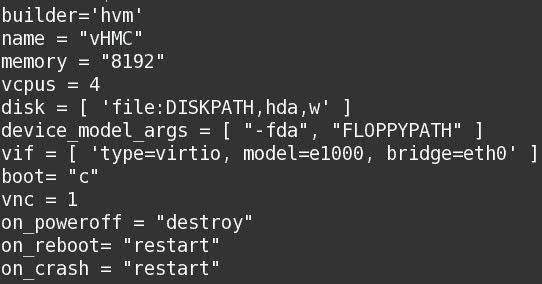
- Edit the following values:
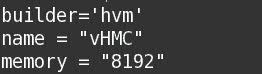
- Change the name of the Virtual HMC(Optional)
- Replace DISK_PATH with the path for disk1.img

- Replace ethernet adapter and add MAC Address(Optional)

Optional MAC Address
Note: XEN will re-generate an auto-generated MAC when Virtual HMC is rebooted, adding the optional MAC Address will solve this issue. - Replace FlOPPYPATH if using Activation Engine

- Create and Start Virtual HMC using edited vHMC.cfg
Command: xl create vHMC.cfg - Verify that Virtual HMC was added to the list of defined VMs.
Command: xl list

- Access the VM local console
Command: vncviewer localhost 0
Virtual Machine Manager is a Graphical User Interface for creating and managing guest virtual machines.
The following procedure displays how to deploy Virtual HMC using Virtual Machine Manager:
Note: Virt-manager packages are required to use Virtual Manager.
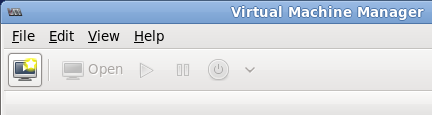
Launch Virtual Machine Manager from
Applications menu and
System Tools submenu or
by command line using virt-manager command (Root priveledges are needed).
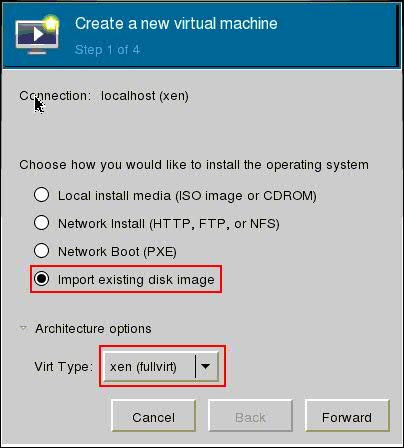
Click the Create a new virtual machine button.
Select Import existing disk image.
Select Virt Type xen(fullvirt) for full virtualization.
Note: Paravirtualize guest is not supported.
- Click browse
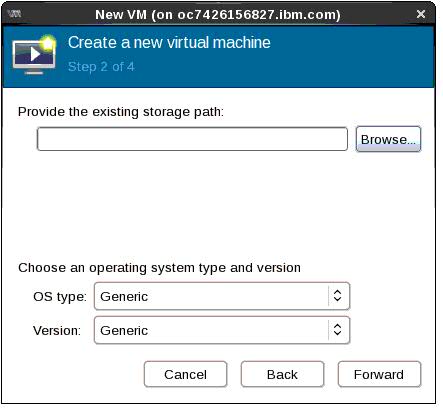
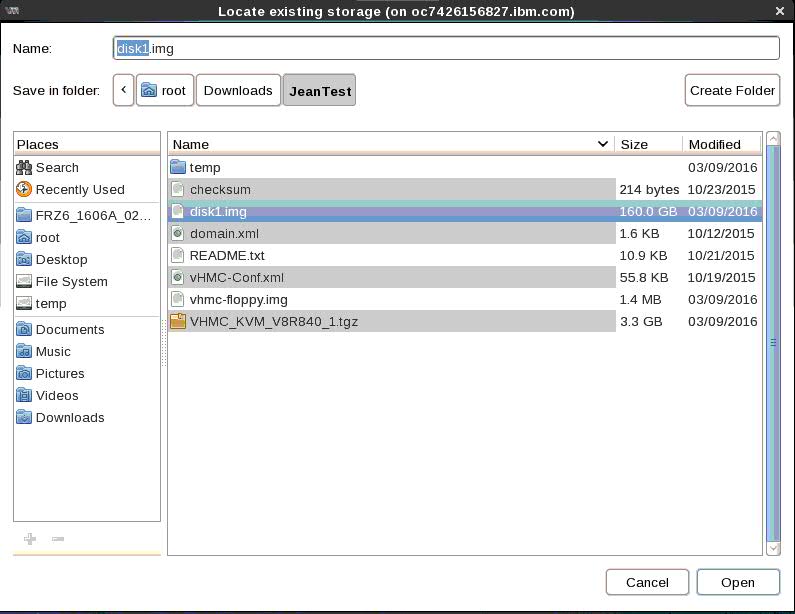
- Specify the Virtual HMC disk1.img
path
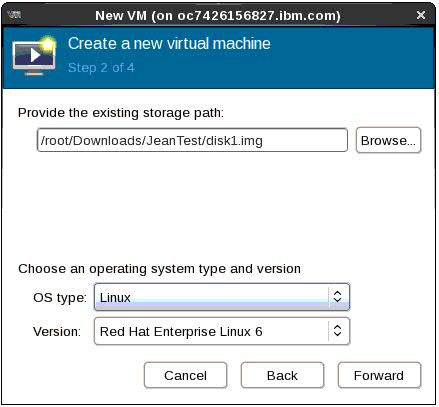
- Select Linux OS type and Red Hat
Enterprise 6 or above
Select RAM memory and
CPUs
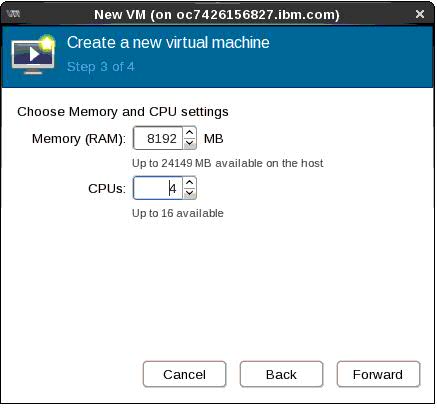
Note: Virtual
HMC Minimum requirements are 8GB ram and 4
CPUs
Name the Virtual HMC Instance.
Select Host Host Device for Virtual HMC.
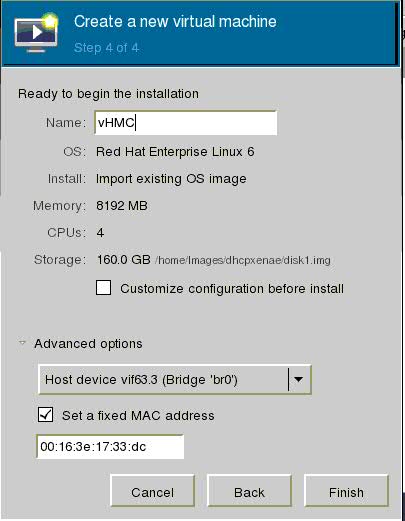
Note: XEN will re-generate an auto-generated MAC when Virtual HMC is rebooted. Selecting the optional Set a fixed MAC address and assigning a MAC address will solve this issue.
- Select Custimize configuration before install

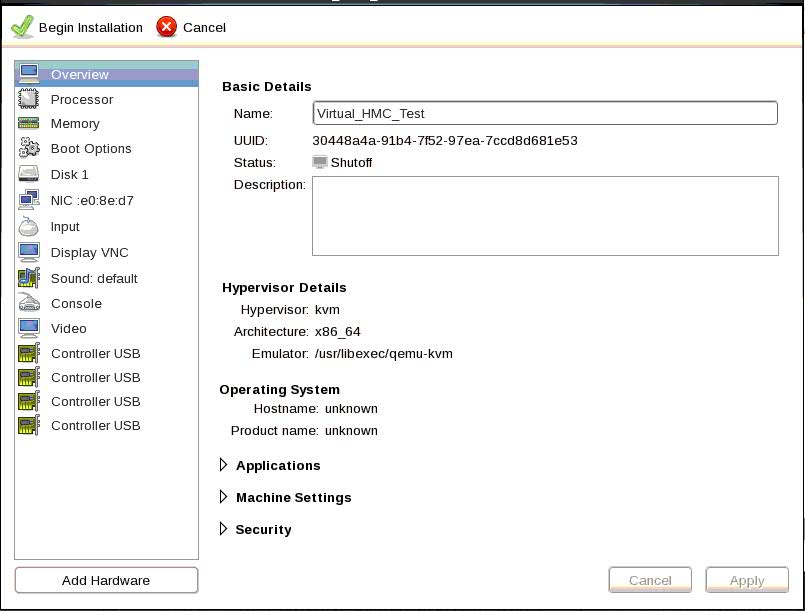
- Configuration Settings