

| Hitachi Data Systems Hitachi, Ltd. | |
|
|
|
Configuring the RACC
The top field is labeled Node ID. In this field, type the node ID for the customer site where you are installing the application. This may be the site ID if there will be only one RACC application running at the customer site. But if multiple RACC applications may be installed at the site, they cannot all have the same node ID. In this case, you may append additional characters to the site ID, or use a completely different character string. The important thing is to remember to communicate the node ID you enter to HDS support personnel so when they configure your node on the internal system, the node IDs will match. The second field (labeled Signal Servers) should be pre-populated with the fully qualified host and domain names for HDS' publicly accessible Hi-Track servers. The third field (labeled Connection points) lists the addresses of the VPN concentrators to which Hi-Track RACC can connect. These servers support the following SSL ciphers:
The next field (labeled Logs to Keep) indicates the number of days that RACC logs are kept on the local disk. Everyday RACC creates a new log file and deletes the files that are not in the specified range. The Session Timeout is the number of minutes before a RACC user session is terminated. The default is to terminate the session and forcibly logout the user after 2 hours. Note that if a user changes the timeout value, upon pressing the save button, the RACC signs out the user. The last field (labeled Banner Message) is an optional warning message that will be presented to users when they access the login page of the RACC app via a browser. It can be used to remind them that unauthorized access is prohibited and may have severe legal consequences. In addition to the message, you may specify its text color by clicking the color icon in the bottom right corner.
The second panel on the configuration page relates to the customer's proxy server. Most likely the system (or service processor) on which you are installing the RACC application will need to use a proxy server in order to obtain domain name resolution and to make requests to the Internet. The customer should be able to provide you the information about the proxy server. The information you need is the hostname or IP address of the proxy and the port on which it listens for requests. (Note that if DNS resolution is obtained from the proxy server, you may need to use the IP address of the proxy server rather than its hostname.) Finally, if the customer's proxy server requires user authentication to service web requests, the customer will need to provide you with a username and password for the RACC application to use.
The third panel on this page is for configuring email notifications of pending request, connect and disconnect events. Enter the hostname of the client's email server into the text box labeled Email server. If the customer�s email server is configured with a custom port, enter it in the SMTP port text field. Enter one or more email addresses in the recipients box. Press the enter key after each address to put each on a separate line.
The next panel on this page is for configuring user identity management within the RACC application. Select user authentication source: depending on this selection, the RACC application authenticates users using either the local repository or a shared Active Directory server. Please review the User Management section for more information. If Active Directory is chosen, the following additional information is required:
Authentication Mechanism: displays the current authentication mechanism that RACC employs. Note1: LDAP configuration settings cannot be saved unless RACC validates at least one user that belongs to the Administrators or Users group. This is to ensure that LDAP authentication is properly configured and to prevent user lockouts. Note2: if a user changes RACC�s identity management settings, upon pressing the save button, the RACC signs out the user. To log into the RACC application again, you must supply new credentials that are valid with the new authentication mechanism. Note3: if Active Directory authentication is selected, the RACC application creates an outbound exception rule in the windows firewall to allow traffic to the active directory host machine. This enables the RACC system to communicate with the Active Directory even if an administrator blocks outbound connections by configuring rules to block outbound connections. System Configuration Check
The System Configuration Check performs a series of tests to determine if the host system meets the minimum requirements to launch VPN sessions. If you are installing RACC on a new host, it is highly recommended to run these tests before saving the configuration. By clicking the green �run� arrow, the RACC application performs the below tests and presents the result. Moreover, if any of the tests fail, it displays the error message as well as a solution to the error. System Configuration Tests
|
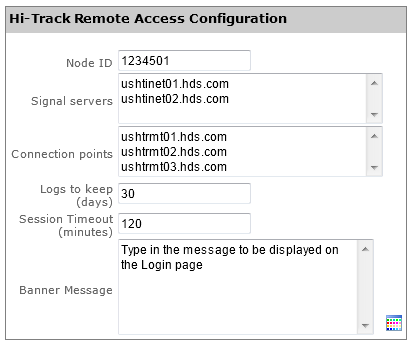 The first panel on the configuration page is titled Hi-Track Remote Access Configuration.
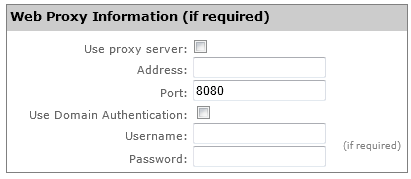 Proxy Configuration
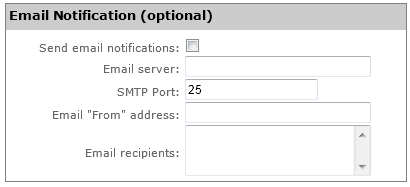 Email Configuration
 User Identity Management